Dual-Arm Franka#
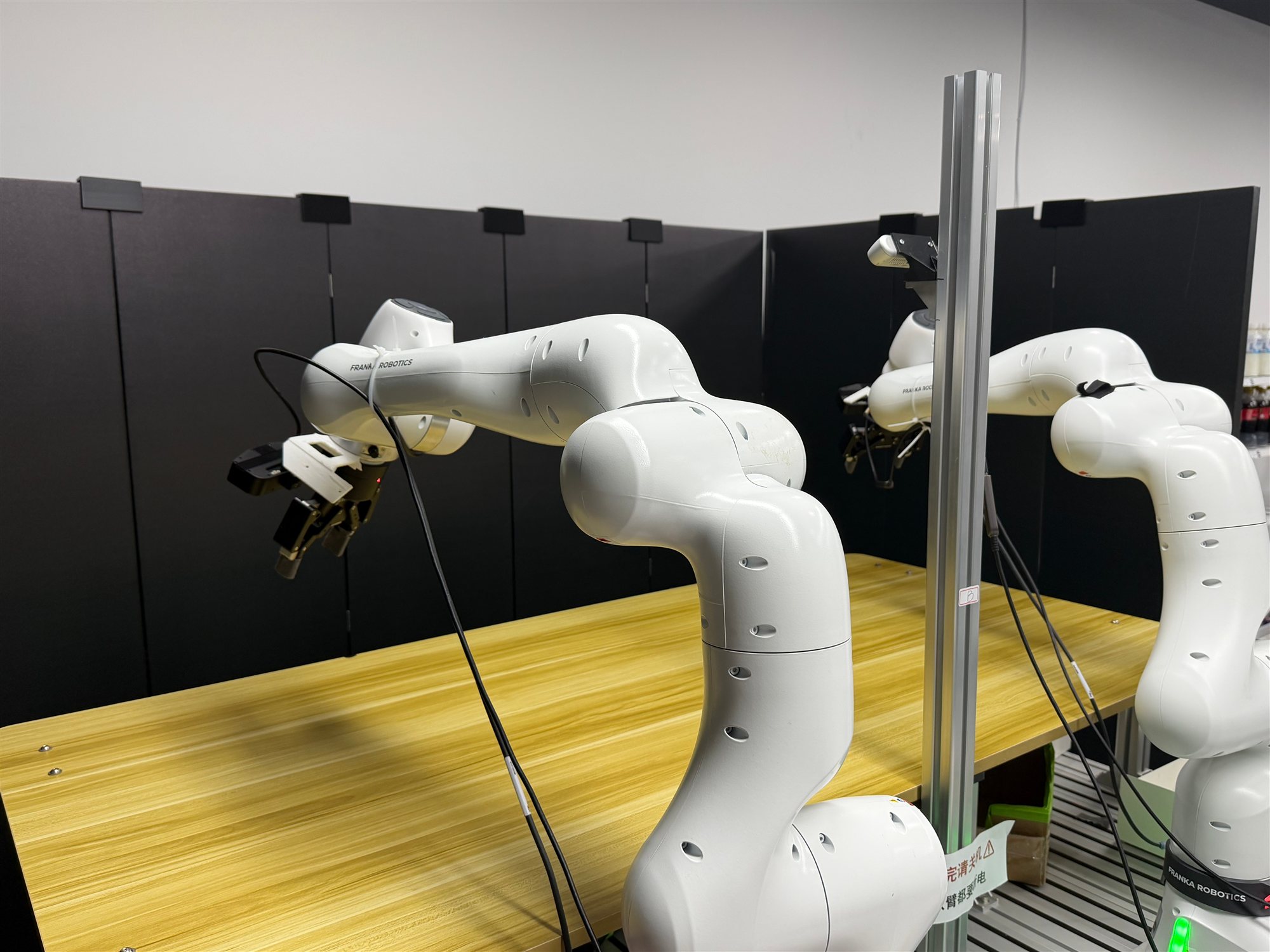
Dual-Franka system for real-world experiments.#
RPent controls a two-node dual-Franka setup through an RLinf
RealWorldEnv worker. Watch the task demos.
Install#
Install RPent on both Linux control nodes with matching code, Python, Ray and RLinf versions. Nodes running VLA or SAM3 locally need an NVIDIA GPU. Use the same installation workflow as Quick Start:
git clone https://github.com/RLinf/RPent.git
cd RPent
uv venv
source .venv/bin/activate
uv pip install -e ".[franka,sam3]"
If Python package downloads are slow, replace the installation command with the Tsinghua PyPI mirror:
uv pip install -e ".[franka,sam3]" \
  --index-url https://pypi.tuna.tsinghua.edu.cn/simple
This option changes only the Python package index; it does not proxy Git repositories, direct download URLs or model weights.
Check libfranka compatibility with the robot firmware before connecting. The calibration state reader also needs libfranka development files; see the calibration steps below.
Run subsequent commands from the repository root in this environment. In a new
terminal, activate .venv and set the required model variables again.
Download SAM3 weights on the environment node if local segmentation is needed:
uv pip install modelscope
modelscope download --model facebook/sam3 sam3.pt \
  --local_dir ./checkpoints/sam3
export SAM3_CHECKPOINT_PATH="$PWD/checkpoints/sam3/sam3.pt"
Without this variable or --sam3-endpoint, segmentation is unavailable;
installing the extra alone does not download weights. VLA checkpoints are
configured in VLA Configuration.
Calibration#
Both base_camera and d455_camera must be calibrated against the
right-arm base. Use calibration_tools/ or ROS
easy_handeye; both export YAML.
Wrist cameras are observation-only in the default configuration. To use a
wrist RGBD camera for projection, configure its calibration and projection view
as described below.
The collector uses RealSense RGB images and accepts zero distortion coefficients
or nonzero distortion.brown_conrady coefficients. Other nonzero distortion
models are rejected.
1. Prepare the environment
Use the installed environment from the RPent repository root on the camera node. To install calibration dependencies separately, create a dedicated environment:
uv venv .venv-calibration
source .venv-calibration/bin/activate
uv pip install -r calibration_tools/requirements.txt pyrealsense2
On the right-arm control node, first follow the official libfranka installation guide to install a firmware-compatible development library, including headers and CMake configuration. Then compile the state reader:
cmake -S calibration_tools -B calibration_tools/build \
  -DCMAKE_PREFIX_PATH=/absolute/path/to/libfranka/install
cmake --build calibration_tools/build --parallel
The build produces calibration_tools/build/read_franka_state. Calibration
uses it to read robot state without moving the arm.
Local reader: omit
--ssh-hostwhen the reader and collector run on the same node.Remote reader: use
--ssh-hostto select the reader’s node and configure passwordless SSH login first.
Replace the camera serials, robot IP and reader path below with your actual values.
2. Start the camera and collect samples
Close programs using the cameras, then start the service:
python calibration_tools/raw_camera_service.py \
  --base-serial BASE_SERIAL --d455-serial D455_SERIAL
Attach the ChArUco board rigidly to the right end effector and keep the camera
stationary. Defaults are 6×8 squares, 25 mm square length, 18 mm marker length,
DICT_4X4_100, and a non-legacy layout. Configure other boards with
--squares-x, --squares-y, --square-m, --marker-m, and
--dictionary; lengths are in meters.
Measure the printed square size and ensure it matches the configuration.
In another terminal on the same camera node, activate the chosen environment:
python calibration_tools/base_handeye_collect.py \
  --arm right --camera-serial BASE_SERIAL \
  --camera-url http://127.0.0.1:8765/raw/base \
  --ssh-host robot-right \
  --reader /absolute/path/to/read_franka_state --robot-ip ROBOT_IP \
  --output calibration_tools/sessions/base-to-right
Open http://127.0.0.1:8767 and collect samples:
Confirm the arm is Idle and free of errors. Move the right arm manually, release the guidance button, wait until stationary, then click
Capture pose.Collect 20–30 different positions and orientations, with rotations about multiple axes. Fitting requires at least 10 samples.
Use
Previewto inspect samples andExcludeto remove unsuitable ones. Run the solver again after changing the samples.Press
Ctrl+Cwhen finished. To recollect, use a new--outputdirectory.
To view the page on your own computer, forward the port first, then open the address above:
ssh -L 8767:127.0.0.1:8767 CAMERA_HOST
For D455, reuse the collection command with serial D455_SERIAL, URL
http://127.0.0.1:8765/raw/d455, and output directory
calibration_tools/sessions/d455-to-right.
3. Fit and export
python calibration_tools/solve_base_handeye.py \
  calibration_tools/sessions/base-to-right --arm right
python calibration_tools/export_dual_franka.py \
  calibration_tools/sessions/base-to-right/base_camera_extrinsic_candidate.json \
  --output calibration_tools/exports/base_to_right.yaml
For D455, use d455-to-right and d455_to_right.yaml instead. Inspect
quality_report.json and validate the candidate against independent physical
measurements. Successful fitting or YAML export does not establish accuracy.
Export does not overwrite existing files.
When exporting a recalculated result, choose a new output filename, such as
calibration_tools/exports/base_to_right_v2.yaml. Validate it before updating
perception.calibration to use the new file.
4. Configure RPent
List the independently validated YAMLs in your robot configuration:
perception:
  calibration:
    base_camera: /absolute/path/to/base_to_right.yaml
    d455_camera: /absolute/path/to/d455_to_right.yaml
Load this configuration with --robot-config below. Preserve and verify
perception.base_frames and localization bounds; these tools do not calibrate
the relationship between the two arm bases.
Wrist projection is optional. Uncomment the wrist entries under
perception.calibration and perception.projection_views in the example
configuration, and configure RGBD cameras with aligned depth and color intrinsics.
Each wrist calibration YAML needs arm: left or arm: right at the top
level, parameters.eye_on_hand: true, and
parameters.robot_effector_frame: left_ee_O_T_EE or right_ee_O_T_EE.
Its transformation maps camera coordinates into that end-effector frame.
RPent combines it with the selected snapshot’s end-effector pose and, for poses
in left_base, the configured base-frame transform, to produce right_base
points. Snapshot TCP poses must represent O_T_EE and declare their base frame.
The default Lumos observation cameras are not automatically enabled for RGBD
projection; selecting a wrist anchor requires this configuration.
After calibration, stop all camera services, collectors, and robot-state readers started for calibration before starting RPent.
Robot Configuration#
If calibration used a separate Python environment, reactivate RPent’s
.venv before running the following commands.
Review and edit the checked-in development defaults before enabling motion:
robots/dual_franka/config/example.yamlcontains the machine identity (bothrobot IPs, camera serials/types, gripper connections), workspace geometry (target poses and safety limits), the easy_handeye YAML mapping (see Calibration), and perception localization bounds + base-frame transform. It sets
realtime_config: ignore; useenforceon a PREEMPT_RT kernel to refuse non-real-time operation.
RPent translates this robot-focused schema into the internal two-node RLinf
cluster and environment objects. To use a different file, pass
--robot-config /path/to/robot_config.yaml.
The example configuration uses the cameras as follows:
base,left_wristandright_wristprovide RGB images for scene observation.d455provides RGB and aligned depth images to convert selected pixels into 3D coordinates. Back-projection requires valid calibration for this camera.
perception.projection_views selects the views used for back-projection; it
does not enable depth capture. Use d455 with the example configuration.
rotate_delta changes the end-effector orientation while trying to maintain
its starting position. rotation_hold.max_drift_m sets the allowed position
drift during rotation, defaulting to 0.10 m (10 cm). Exceeding this limit
aborts the call with an error.
Task Selection#
The main example uses task 2. On first connection, use task 0 to check
small translations, rotations and gripper actions. This is a planner-guided
check, not a fixed automated sequence, and does not require VLA.
ID |
Task |
VLA required |
|---|---|---|
0 |
Planner-guided primitive checks |
No |
1 |
Dirty/clean sorting of bowls and plates, with cup and utensils |
Yes |
2 |
Dirty/clean sorting of bowls, plates, and two cups; no utensils |
Yes |
Note
Task IDs select tasks in launch commands; sorting tasks use their names for recipe and memory identifiers. Keep IDs and names associated with the same task when editing definitions. Do not reorder IDs or reuse names for different tasks.
In task 1, an egg tart or foil tray inside a bowl or on a plate marks it as
dirty. Dirty bowls and plates go into the metal basket; clean bowls and plates,
and the cup, go into the cardboard box. The chopsticks and spoon go inside the cup.
In task 2, chicken nuggets inside a bowl, or an egg-tart foil tray in a cup
or on a plate, mark it as dirty. Dirty objects go into the metal basket; clean
objects go into the cardboard box. There are no utensils.
Both sorting tasks provide vla_right_grasp / vla_handoff / vla_left_place skills.
VLA Configuration#
PI05_CHECKPOINT_PATH points to the trained Pi0.5 checkpoint, while
DUAL_FRANKA_REPO_ID is the dataset ID used to locate matching normalization
statistics.
The environment variables correspond to --vla-model-path and
--vla-repo-id. The repo ID is the relative directory containing the matching
normalization statistics, not the model download repository name. The checkpoint
must contain:
actor/model_state_dict/full_weights.pt
<DUAL_FRANKA_REPO_ID>/norm_stats.json
Pretrained checkpoint
Download the dual-Franka clean-desk checkpoint from Hugging Face. It supplies the VLA skills; the RPent planner makes the dirty/clean sorting decisions.
uv pip install huggingface_hub
hf download RLinf/RLinf-Pi05-RealWorld-DualFranka-Clean_Desk \
  --revision 4f43adc723dfe98fae806a131ad61999e1f95e4f \
  --local-dir ./models/pi05-dualfranka-clean-desk

export PI05_CHECKPOINT_PATH="$PWD/models/pi05-dualfranka-clean-desk"
export DUAL_FRANKA_REPO_ID=id_0
This checkpoint includes id_0/norm_stats.json. Keep it with the downloaded
weights and use id_0 as shown above.
Warning
This checkpoint is trained only on our in-house test environment (robot poses, cameras, workspace layout, and objects), so it is expected to generalize poorly to a different setup. To deploy on your own rig, collect demonstrations and fine-tune your own checkpoint with RLinf by following the RLinf dual-Franka guide (collect GELLO demos, convert to tcp_rot6d, run SFT, then deploy).
Robot Codex Profile Isolation#
In a dedicated terminal, activate .venv and set separate Codex configuration
and session directories from the repository root. Repeat this in each new
robot-control terminal:
export CODEX_HOME="$PWD/.codex-rpent-live"
export CODEX_SQLITE_HOME="$CODEX_HOME"
export CODEX_SERVICE_TIER=fast
mkdir -p "$CODEX_HOME"
unset CODEX_API_KEY CODEX_BASE_URL OPENAI_API_KEY OPENAI_BASE_URL CODEX_ACCESS_TOKEN
export CODEX_BIN="$(python -c 'from codex_cli_bin import bundled_codex_path; print(bundled_codex_path())')"
On first use, enable file credential storage in $CODEX_HOME/config.toml,
then log in with the CLI bundled with the SDK:
cli_auth_credentials_store = "file"
"$CODEX_BIN" login --device-auth
"$CODEX_BIN" login status
If sqlite_home is already configured, point it at the separate directory too.
For a custom API, explicitly set this deployment’s CODEX_API_KEY and
CODEX_BASE_URL. See Codex authentication for other login methods.
RPent does not enable this isolation automatically. It neither isolates shared
workspace files nor migrates old sessions. Task memory is selected separately
with --memory-dir. Never commit the private directory or credentials.
Start the Two-node Ray Cluster#
Activate the installed .venv on each node before starting Ray. The default
placement in robots/dual_franka/runtime_config.py is:
Node
0is the Ray head: it runs RPent, the environment worker, the left arm/gripper controller, the base camera and the left wrist camera. RPent opens the additional D455 locally here. Local VLA and SAM3 services also run here when configured.Node
1is a Ray worker: it runs the right arm/gripper controller and its right wrist camera. It needs the installed environment and Ray, but no separate RPent runner.
RLinf creates camera handles on the configured nodes; it does not search other nodes for a relocated USB camera. Connect each wrist camera to its arm’s control node and edit the configured type/serial for the actual device.
Warning
Set RLINF_NODE_RANK before starting Ray on each controller node.
Node 0:
export RLINF_NODE_RANK=0
ray stop --force
ray start --head --port=6379 --node-ip-address=HEAD_IP
Node 1:
export RLINF_NODE_RANK=1
ray stop --force
ray start --address=HEAD_IP:6379 --node-ip-address=WORKER_IP
Manual Skill Testing#
List the available skills, then inspect the parameters and types accepted by a skill. From the repository root:
python robots/dual_franka/dual_franka_manual_call.py --list-primitives
python robots/dual_franka/dual_franka_manual_call.py --schema vla_right_grasp
Without service addresses, the script starts and connects to the required
services automatically; no port selection is needed. It stops only the services
it started when it exits. Supply --env-endpoint, --vla-endpoint or
--sam3-endpoint to reuse an existing service. Attaching to an existing Env
does not reset it. With a newly started Env, a manual action first requests
scene confirmation and performs one reset. An explicit manual reset also
waits for confirmation. Listing tools and printing schemas never starts services.
For example, check the schema before running a small left-arm translation:
python robots/dual_franka/dual_franka_manual_call.py --schema move_delta
python robots/dual_franka/dual_franka_manual_call.py \
  --primitive move_delta --params '{"arm":"left","delta_xyz":[0.01,0,0]}' \
  --robot-config robots/dual_franka/config/example.yaml
Use --primitive NAME --params JSON to call a tool; manual calls do not select
a task ID. The example config already sets vla.instruction for the clean-desk
policy. Change it for a different checkpoint, or override it with
--instruction. This setting applies only to manual calls; task runners still
use their registered task instructions. prompt inside --params records
the skill intent and does not replace the policy instruction.
With the VLA checkpoint and normalization variables set, run one grasp skill:
python robots/dual_franka/dual_franka_manual_call.py \
  --primitive vla_right_grasp \
  --params '{"prompt":"grasp the bowl","max_chunks":1}' \
  --robot-config robots/dual_franka/config/example.yaml
VLA Diagnostic Console#
The console runs VLA independently of the agent and registered tasks. The policy
instruction comes from vla.instruction in the robot config, unless overridden
with --instruction. Run it from a source checkout; it starts Env and VLA
services as needed, without SAM3.
python -m tests.e2e_tests.dual_franka.dual_franka_vla \
  --robot-config robots/dual_franka/config/example.yaml
Once the console starts, enter:
run N: predict and execute N action chunks (sequences produced by the model in one prediction). Omit N for continuous rollout without skill-boundary stops.reset: reset both arms in the same environment after the operator repliesdone. Replyingabortcancels the reset.quit: exit the console.
Startup does not reset the arms. During rollout, press Ctrl+C or create the
STOP file in the log directory to stop. An in-flight RPC may still finish;
this is not a hardware emergency stop. Inputs and predictions are saved as
JSON/NPZ. If execution state is uncertain, check the physical scene and restart.
The action chunk length is read from the VLA server, or can be set explicitly
with --expected-action-steps.
Run a Task#
Complete calibration, robot configuration and Ray startup, then configure the planner using Planner Configuration. Before using Codex, complete Robot Codex Profile Isolation.
With the model variables set, the example below runs task 2. Select another
registered task with --task-id. RPent starts the required
environment and model services automatically; do not start VLA in another terminal:
rpent --robot dual_franka --task-id 2 \
  --planner codex --model gpt-6-astra --reasoning-effort xhigh \
  --robot-config robots/dual_franka/config/example.yaml \
  --memory-profile local --memory-dir ./memory/dual_franka
Connection initializes controllers and grippers without resetting robot posture.
The agent first calls request_scene_reset: secure held objects, restore the
tabletop and check both reset paths, then answer done to allow reset and a
fresh observation. Motion remains blocked if confirmation or reset fails. Each
new run/session needs its own confirmation.
The example uses Codex, gpt-6-astra and xhigh reasoning. Claude Code is
also available: replace the planner/model options with
--planner claude_code --model claude-opus-4-8. See
Planner Configuration for model and reasoning settings.
Append options to this same command as needed:
--exploreexplores and accumulates task memory, as described below.--explore --interactiveaccepts terminal feedback during exploration; ordinary tasks do not support--interactiveon its own.--dashboardaccepts tasks, messages and confirmations in the web input. Add--explorefor exploration. Do not combine it with--interactive. See Interactive Usage for interface controls.
View Results#
Use a new --output-dir for each run. Inspect:
transcript_*.jsonfor planner messages, tool calls and the finish result.run.logand component*_server.logfiles for runtime/startup errors.states.jsonand its referenced image, depth and robot-state artifacts for the evidence after each step.operator_events.jsonfor reset confirmations and human verdicts.
Exploration keeps per-session state and operator records under
sessions/session_<NNN>/. Physical task success comes from the operator’s
verdict, not a successful RPC or the planner’s own finish text. See
Output Files for the common output layout.
Tools and Artifacts#
The extension exposes view_env_state, view_camera_meta, move_delta,
rotate_delta, open_gripper, close_gripper, and vla_right_grasp / vla_handoff / vla_left_place. Each
analytic motion selects exactly one arm, left or right. Mutating tools
capture per-arm state and synchronized left-wrist, base, and right-wrist images
in RPent’s central EnvState.
Attended Exploration#
Append --explore to a task command to enable exploration. Set attempts per planner session
with --explore-attempts-per-session and session count with
--explore-sessions. Add --interactive for terminal input or
--dashboard for web interaction.
Each planner session begins with request_scene_reset. Secure held objects,
restore the scene and reply done. A successful reset and camera/state capture
start an attempt; a failed reset keeps motion blocked.
--explore-attempts-per-session limits attempts within each session.
External --env-endpoint servers must advertise explicit_reset_only=True
for both ordinary and exploration runs.
request_operator_verdict asks for success, failure, continue or
abort, with optional notes. Its success/failure reply judges the current
attempt; continue resumes it and abort stops exploration. Further motion
clears the previous verdict. Closing terminal input also stops exploration.
With Codex/Claude and --interactive, use the displayed request ID, for example
/operator <request-id> done or /operator <request-id> success object lifted.
Other messages go to the agent. Without --interactive, answer the prompt
directly. With --dashboard, use the commands below in the Dashboard message input.
Records and Memory#
Find camera and robot state in sessions/session_<NNN>/, attempt boundaries in
exploration.json and human feedback in operator_events.json.
Failed attempts are retained; working notes are in
<memory-dir>/_internal/inbox/<recipe_tag>/wip/.
Memory merging is enabled by default. Normal completion merges valid global
and task-family drafts, including lessons from failed attempts. Success also
saves a complete audit/recipe pair under task-specific.
Use --no-auto-merge-memory to keep records without merging. Errors, aborts,
task replacement and Dashboard Session shutdown prevent merging. See
Memory and Exploration for the memory layout.
Exploration Commands#
In Codex/Claude terminal interaction (--explore --interactive) or Dashboard
exploration, use:
/successor/failureto end the task, rather than only judge an attempt. Success requires a confirmed reset. In the terminal, failure can end the task before the first reset; in Dashboard, answer a pending reset with/doneor/abortfirst./doneto confirm a pending scene-reset request./continueto answer a pending verdict and resume the attempt./abortto stop the task, even if a camera is unavailable.
Enter each command on its own. Bare words such as success and failure
are ordinary agent messages. Already-issued robot actions or RPCs may need to
return before the task can end; these commands are not an emergency stop.
Flash Replay#
Dual Franka uses the shared Franka Flash workflow.
The example below uses task 0; for another task, change the ID in both the
generation and replay arguments. Generate with --robot dual_franka --task dual_franka_t0 and replay with
--robot dual_franka --planner flash --task-id 0. Use a dual-arm plan and
robot configuration. Translation annotations name base, d455,
left_wrist or right_wrist with depth and valid calibration.
Primitive moves specify arm: left or arm: right; left-arm workspace
checks convert the shared right-base target into the left-base frame.